Two-factor authentication is a security feature that adds an extra layer of protection to your CardUp account. We recommend using a Google or Microsoft Authenticator App which can be downloaded from your phone's app store.
- For iOS: Google Authenticator / Microsoft Authenticator / LastPass Authenticator / Authy
- For Android: Google Authenticator / Microsoft Authenticator / LastPass Authenticator / Authy
How to set up 2FA on your CardUp account
1. Log into your account:
- Business Users: Login Page Here
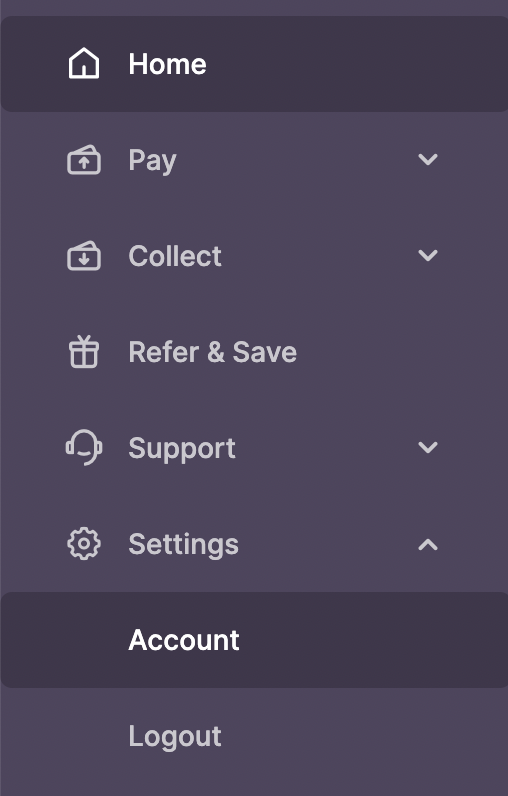
2. Click on Settings and Account on the left side of the page
3. Under Account Settings, select Security
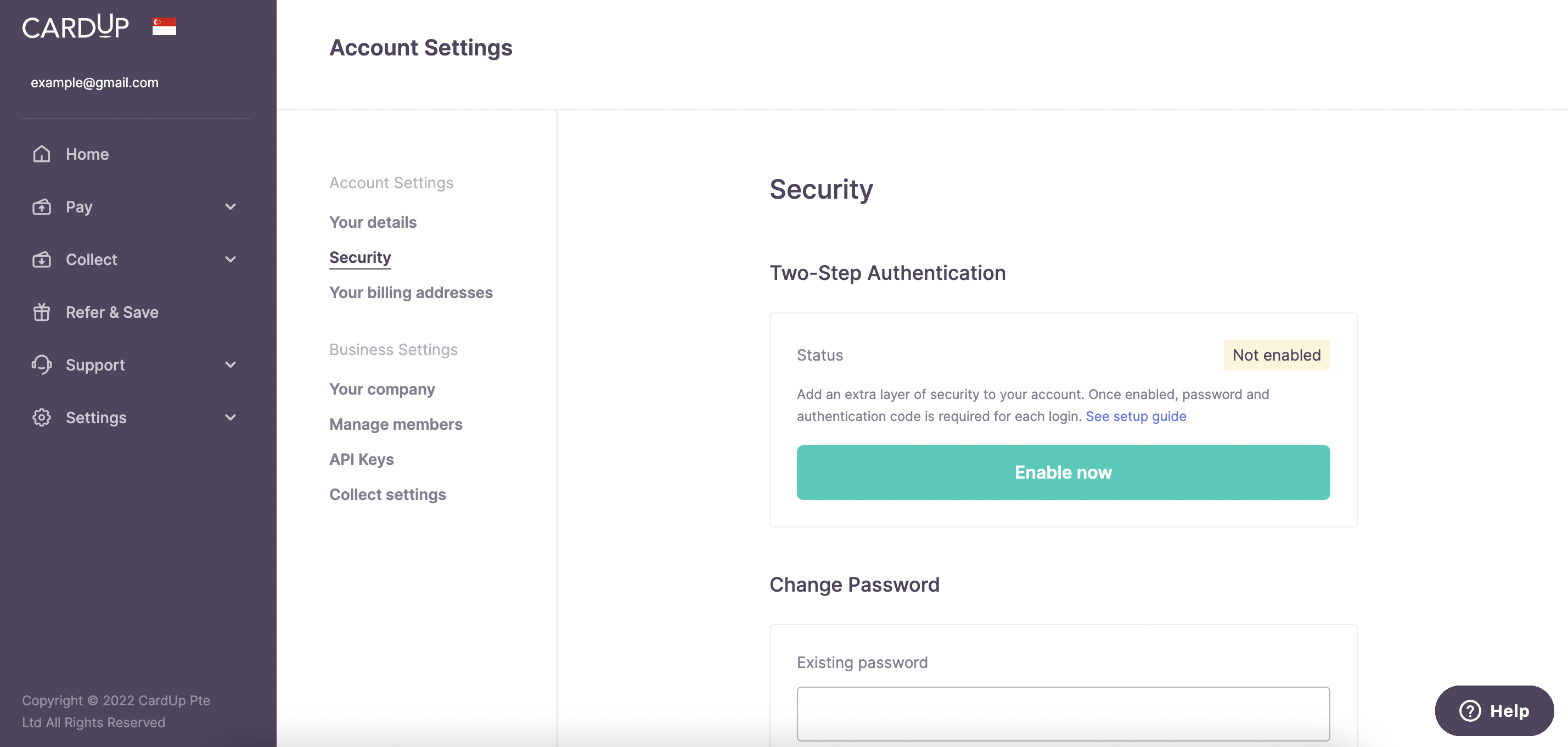
4. You will see Two-Step Authentication, click Enable Now
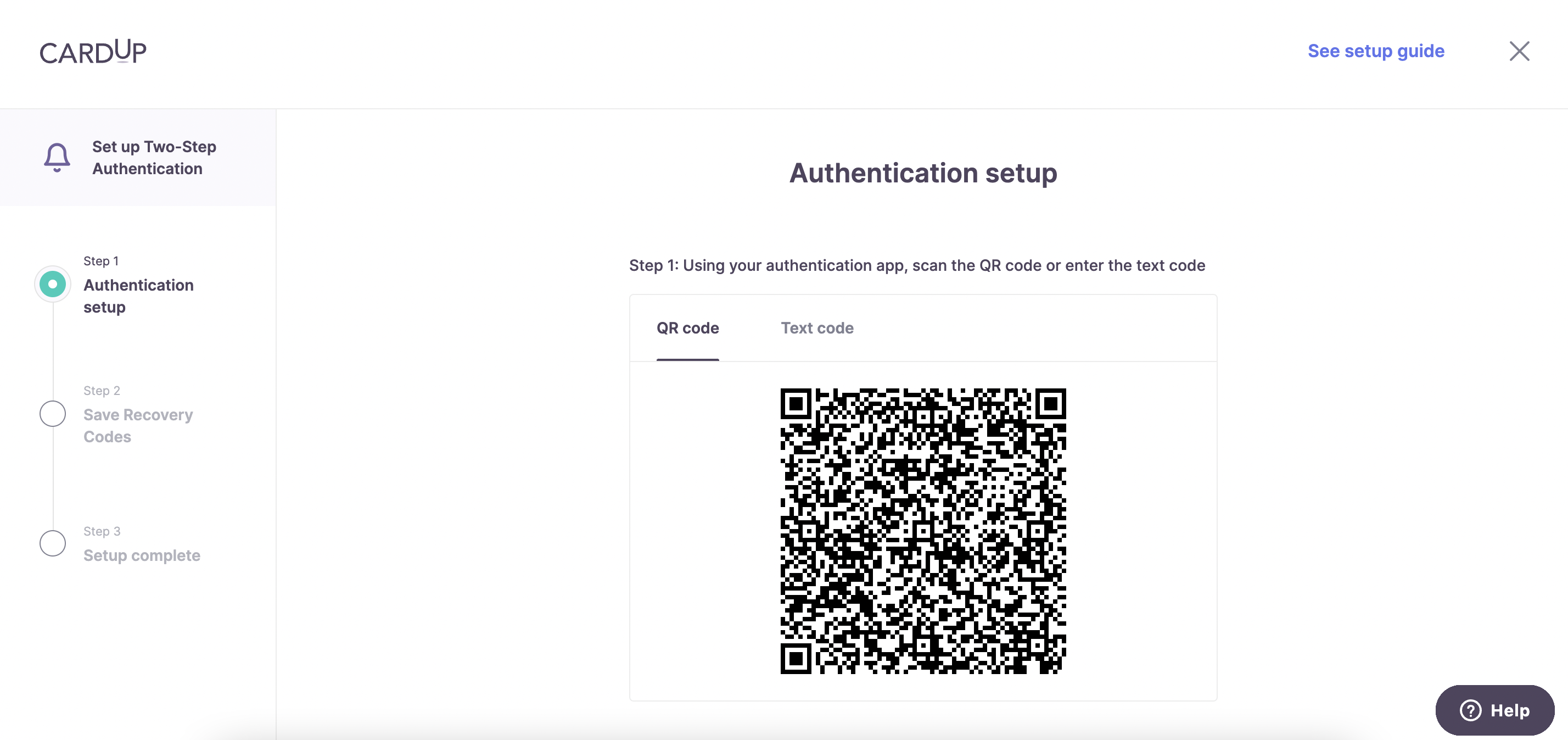
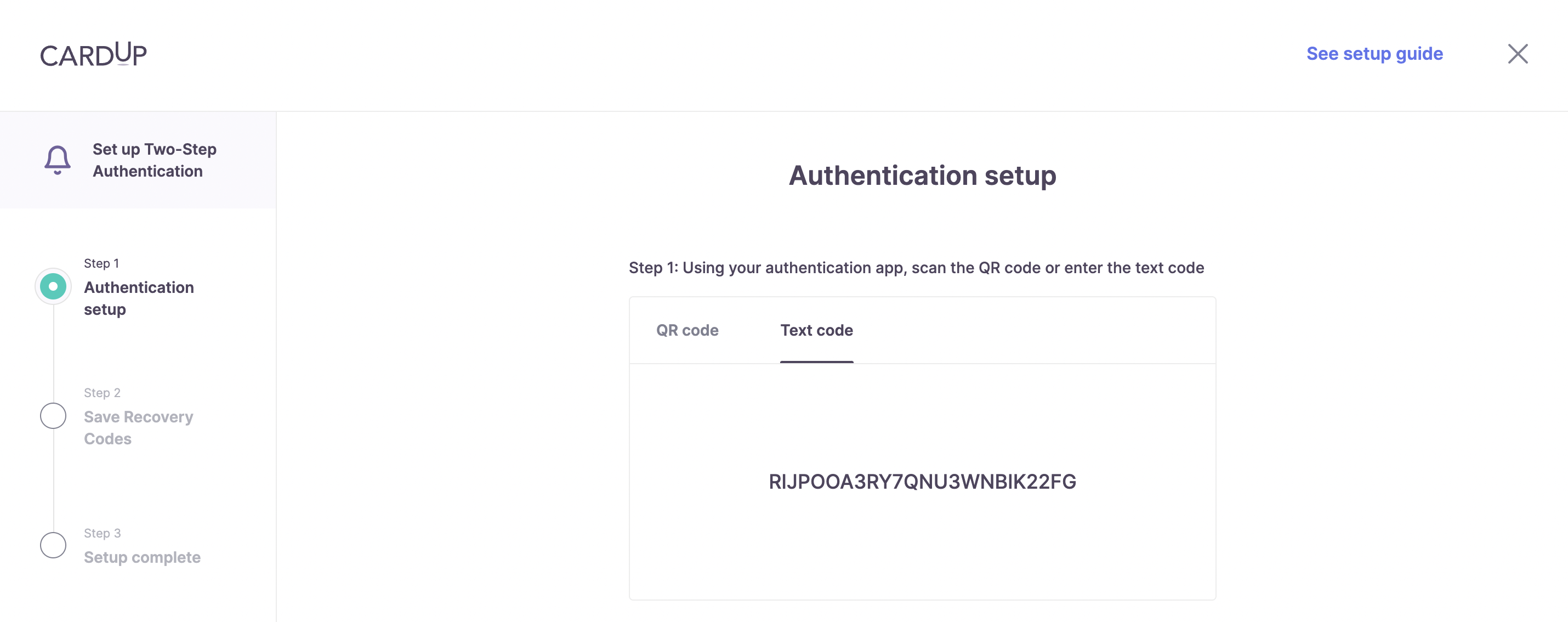
Authentication setup
Step 1: Using your authentication app, scan the QR code or enter the text code
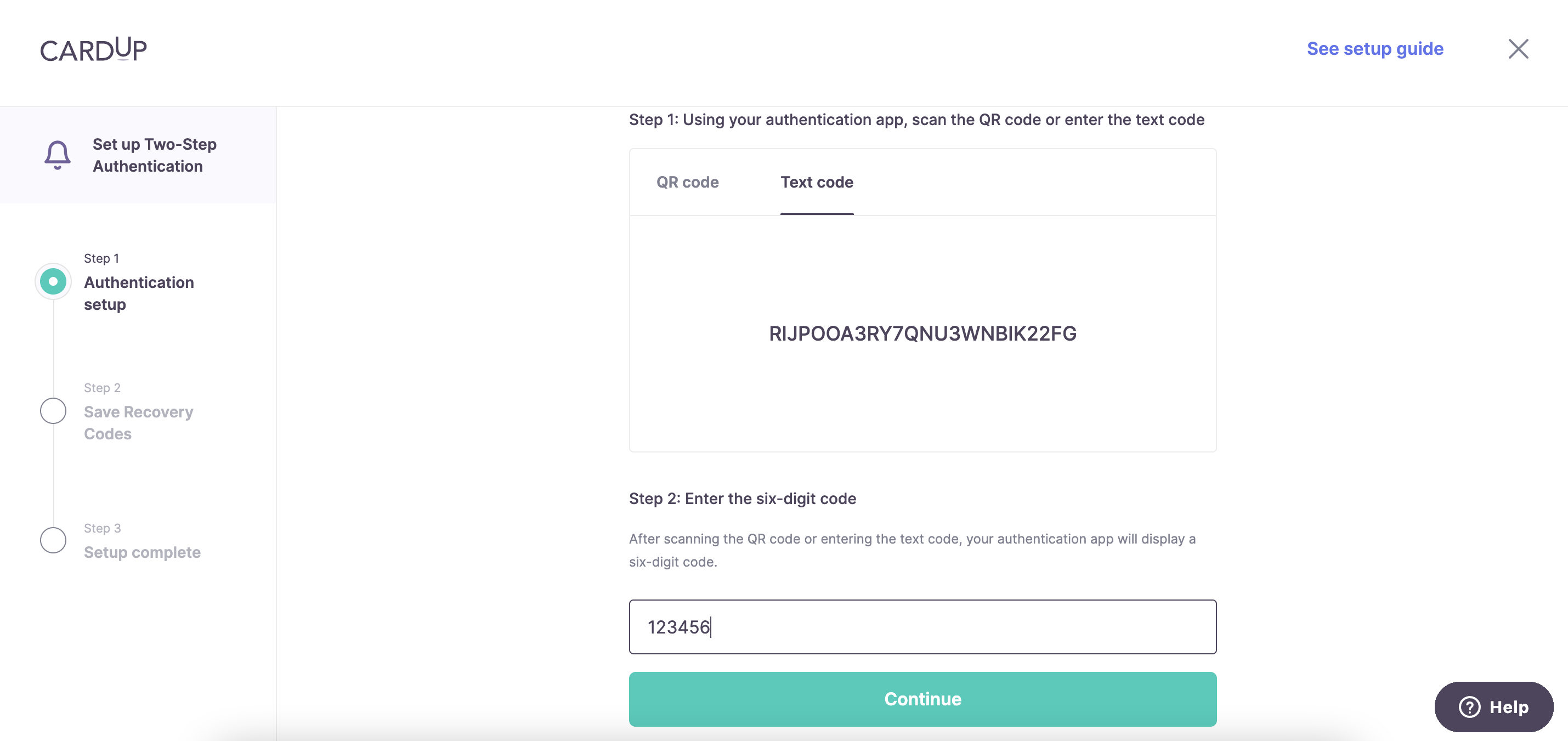
Step 2: Enter the six-digit code
After scanning the QR code or entering the text code, your authentication app will display a six-digit code
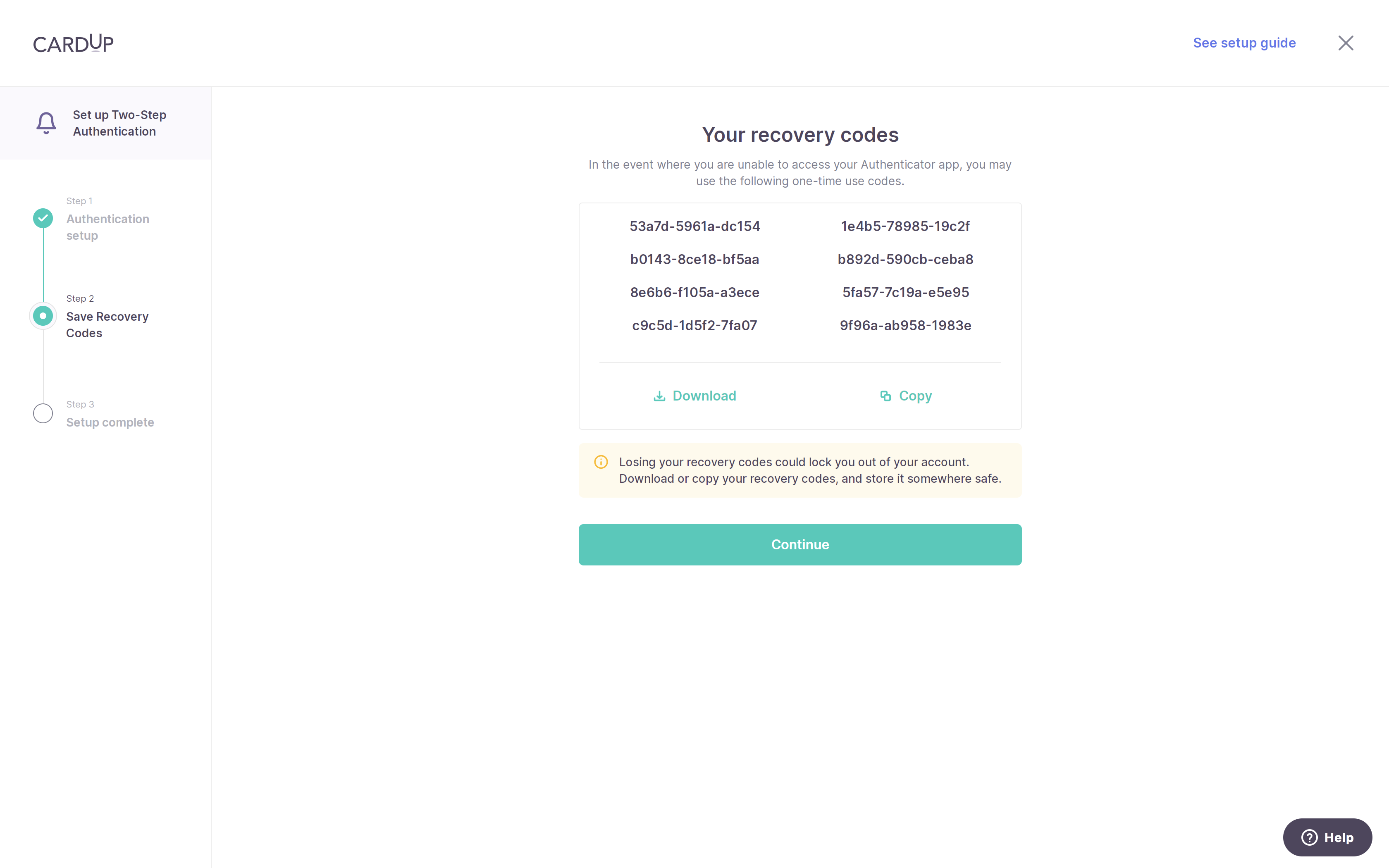
You will be given a set of recovery codes which you can download and save in the event you lose access to your CardUp account
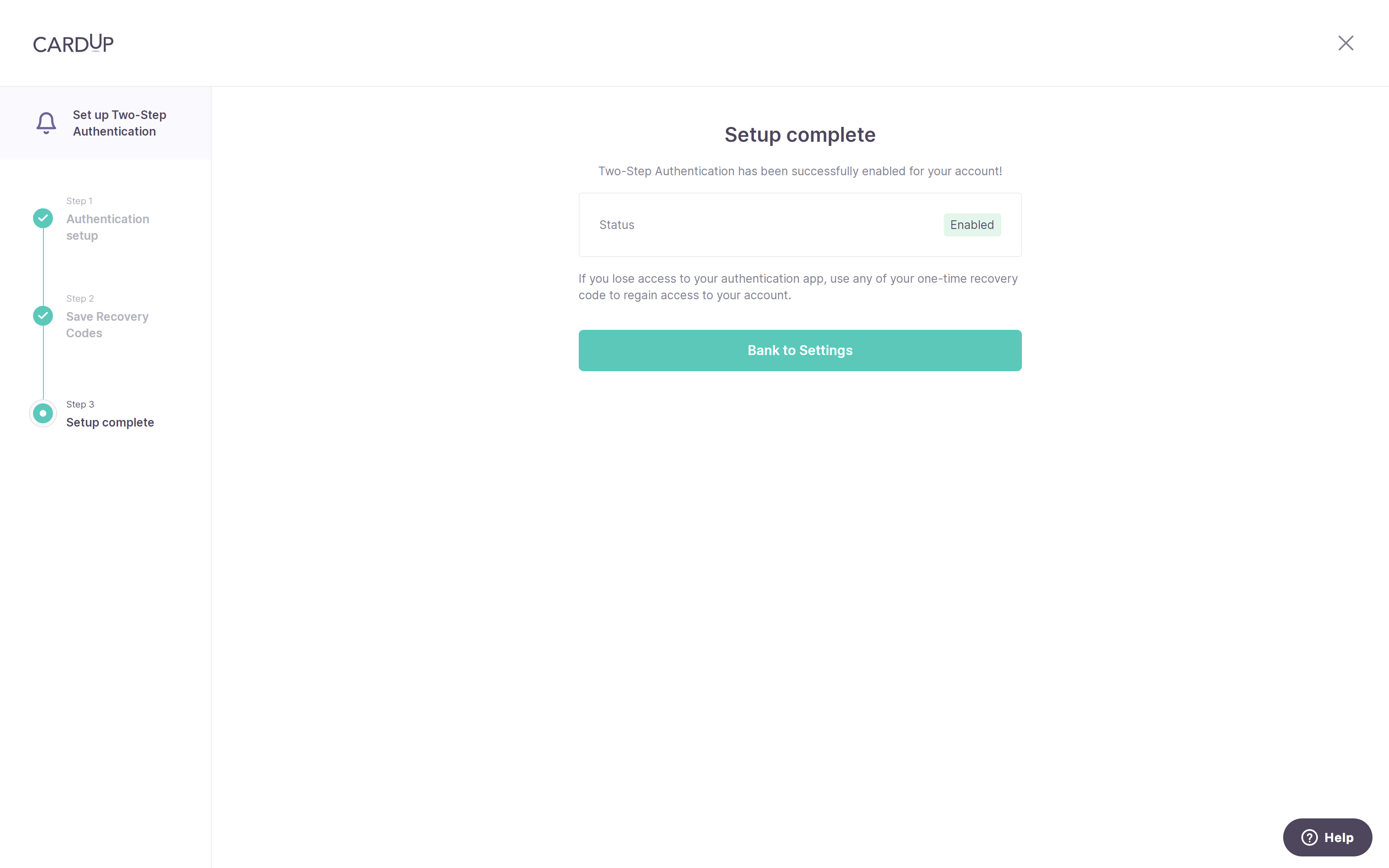
Once done, the status of your Two-Step Authentication should be changed to Enabled